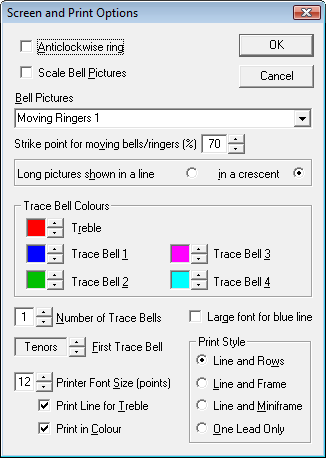
Screen and Print Options
This dialog allows you to select and choose various options regarding how Abel prints and displays bells and blue lines etc. on the screen.
Anticlockwise Ring
Allows you to choose whether Abel displays the bell circle normally (clockwise) or anticlockwise. If you tick this box, Abel will change the circle so that the bells ring anticlockwise. The first manual bell, which is normally at the bottom right, will move to the bottom left. If using Moving Ringers/Ropes pictures, the order of them is reversed. Note - if you use this option you might also like to use the keyboard mappings option to change which keys operate which manual bells.
Scale Bell Pictures
Allows you to specify that the size of bell pictures varies with the bell number, from the smallest being the treble to the largest being the tenor. This can help you pick out the treble during ringing, particularly on higher numbers of bells. It applies only for bell pictures arranged in a circle (ie square pictures, rather than tall pictures of ropes etc).
Bell Pictures
Allows you to select the pictures that Abel uses to represent bells on the screen. There are three types of pictures provided:
The standard, HD and Moving Handbells pictures are square, and are displayed in a circle that rotates so that the (first) bell you ring, eg with the j key, is at the bottom right (or left, for an anticlockwise ring). The Moving Ringers/Ropes pictures are rectangular, and are displayed either in a 3-dimensional crescent with the bell(s) you ring on the edge(s) of the crescent, or in a line across the screen with the treble at the left (or right, for an anticlockwise ring) and the (first) bell you ring identified by a blue bar.
See Adding your own bell pictures to find out how to add your own ringer and bell pictures.Strike Point for Moving Ringers/Ropes/Handbells
If you select Moving Ringers, Ropes or Handbells, you can set the point at which the bell strikes, as a percentage of the bell movement time. Abel keeps a separate value for each set of Moving Bells/Ringers. For moving ringers/ropes, a value of about 70% looks best with the supplied pictures; for moving handbells, 100% is normal. You may want to vary it if you provide a complete set of your own pictures, or to match the striking of bells you are ringing with Abel (alternatively, if ringing with silenced bells, you may want to adjust their striking to match Abel's pictures). Note that your changes to this value may be preserved even if you click the Cancel button.
Weighted Bells for Moving Ringers
If you tick this box, the Moving Ringers behave as if they are ringing bells of different weights, so you have to leave a bigger visual gap over bells heavier than yours, and a smaller gap over bells lighter than yours. With this box not ticked, you leave the same visual gap over all the other bells (which behave like bells weighing about 4cwt).
Set Up Moving Ringers Pictures
Abel allows you to have different ringer 'video' for each Moving Ringers bell. If you click the 'Set Up Moving Ringers' button, you can select which pictures are used for each bell: the following dialog appears:
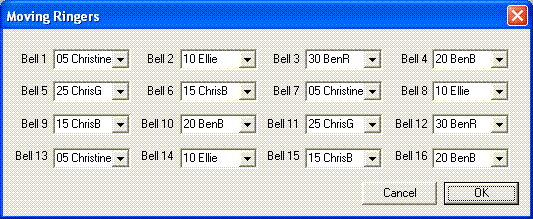
Just click the down arrow beside each ringer name to select a different one. You may find ropesight easier if you use pictures of only two or three different ringers, of similar height (they are listed in increasing height order). You can also add 'video' pictures of your own ringers (see Adding your own bell pictures) and then select them in this dialog.
Moving Ringers/Ropes Shown in a Crescent/ in a Line
If you have selected Moving Ringers or Ropes, they can be displayed either in a 3-dimensional crescent (recommended!) or in a line across the screen.
Trace Bell Colours
Allows you to choose the colours to be used on the 'blue-line' display for each trace bell you have specified. Use the arrows to change colours
Number of Trace Bells
A "trace bell" is a bell with a line drawn through it, and optionally highlighted by colour, in the blue line display and printing. This option allows you to choose how many bells are to be traced.
You can set how many bells to trace, up to 4 (plus the treble): if you are a handbell ringer, you will probably want to trace 2 bells plus the treble.
If you've rung one or more bells yourself, Abel traces the first bell you rang, and consecutive bells up to the specified Number of Trace Bells. Otherwise, Abel traces bells starting with the one that would be rung by the J key or by the external bell mapped to the treble.
Large font for blue line
Allows you to choose to have the on-screen blue line appear in a large font.
Printer Font Size, Print Line for Treble and Print in Colour
Lets you choose how big the text is when you print, and whether or not Abel uses colour when printing. If Print Line for Treble is ticked, a line will be drawn through though the treble's path, using the colour specified in Trace Bell Colours (default red).
Print Style
The options here allow you to choose the format used to print methods.